FluidVoice - My Dictation Assistant

Table of Contents
I’ve been using the app FluidVoice now for about a week, and I’m really liking it. It’s a capable voice transcription tool with a layer of AI on top. It’s free, open source (GPLv3), and made by altic-dev, with everything running on-device by default. What sets it apart for me is that it’s a local, private alternative to tools like Wispr Flow — nothing has to leave my Mac for it to work. Some of the features that I like using the most include:
- Hold-to-talk transcription from a single hotkey
- A live view of what’s being transcribed
- A wide choice of transcription models
- The option to switch from hold-to-talk to press-to-start/stop for long dictation sessions
Getting FluidVoice
FluidVoice runs on macOS 15 (Sequoia) or later — Apple Silicon natively, and Intel Macs via the Whisper models. The fastest way to install is with Homebrew:
brew install --cask fluidvoiceYou can also grab the latest build from the releases page. iOS and Windows are on a waitlist, with Linux on the way.
How I Use It #
Most of my day comes down to getting words out somewhere — blog posts, documentation, pull request descriptions, chat messages, and more and more, prompts to AI tools. FluidVoice has quietly slotted into all of it. I hold the hotkey, say what I mean, and the text lands wherever my cursor already is, whether that’s my editor, a browser text box, or a terminal. There’s no separate window to copy out of and no context switch.
So far, plain voice-to-text has been my primary use. Talking through a thought is faster than typing it, and I find I give more detail when I’m speaking, because there’s less friction between the thought and getting it down — a rambling, detailed prompt that I’d never bother to type is suddenly cheap to produce. For longer stretches, switching from hold-to-talk to press-to-start-and-stop lets me dictate a few paragraphs at a time without keeping a key held down.
I’m still early with it, though. There’s a lot more here I want to dig into — the AI enhancement and file transcription especially — and from what I’ve seen so far, it’s a fit for how I work and pointed in the right direction for where voice-to-text is heading.
Voice Transcription #
Voice transcription really isn’t new. It’s been around for quite some time. It’s just now lately with how AI has been progressing and some of the videos about getting prompts to AI, that I believe that voice transcription is really taking off.
One of the things I like most is the range of speech models you can pick from, so you can trade off speed against accuracy for how you work. The options include Nemotron Speech 3.5, Parakeet Flash and TDT (v3 and v2), Cohere Transcribe, Apple Speech, and Whisper in several sizes. They all run on-device, so nothing leaves the machine to get your words transcribed.
Custom Dictionary #
One feature that has quickly become essential for me is the custom dictionary. Out of the box, a speech model has no idea what to do with a word like Nautobot — it comes out as “not a bot,” “now to bot,” or something else entirely every time. With the custom dictionary I can add the term once and have it transcribed correctly from then on. The same goes for the rest of the vocabulary I use every day: product names, company names, and acronyms that no general-purpose model was ever trained on.
It also learns as you go. When you keep correcting the same misheard word, FluidVoice can notice the pattern and offer to save the correction as a dictionary entry, so your personal vocabulary gets more accurate the more you use it. For anyone writing in a specialized space — networking, in my case — this is the difference between transcription that’s usable and transcription you spend more time fixing than you saved.
AI Enhancement #
I have not yet played with the AI enhancement, but there are a number of providers to choose from. When I looked, the options included Fluid Intelligence (the local, on-device model) itself, OpenAI, Anthropic, and Ollama and LM Studio running locally — though the exact set has been shifting release to release, so check the app for what’s current. And if none of those suit your needs, there’s the ability to point at your own AI provider with a custom URL, since it uses OpenAI-compatible endpoints.
File Transcription #
One of the more interesting things that I’m going to be looking forward to is using the meeting transcription feature where you can upload your video files or audio files to get text output.
Dashboard #
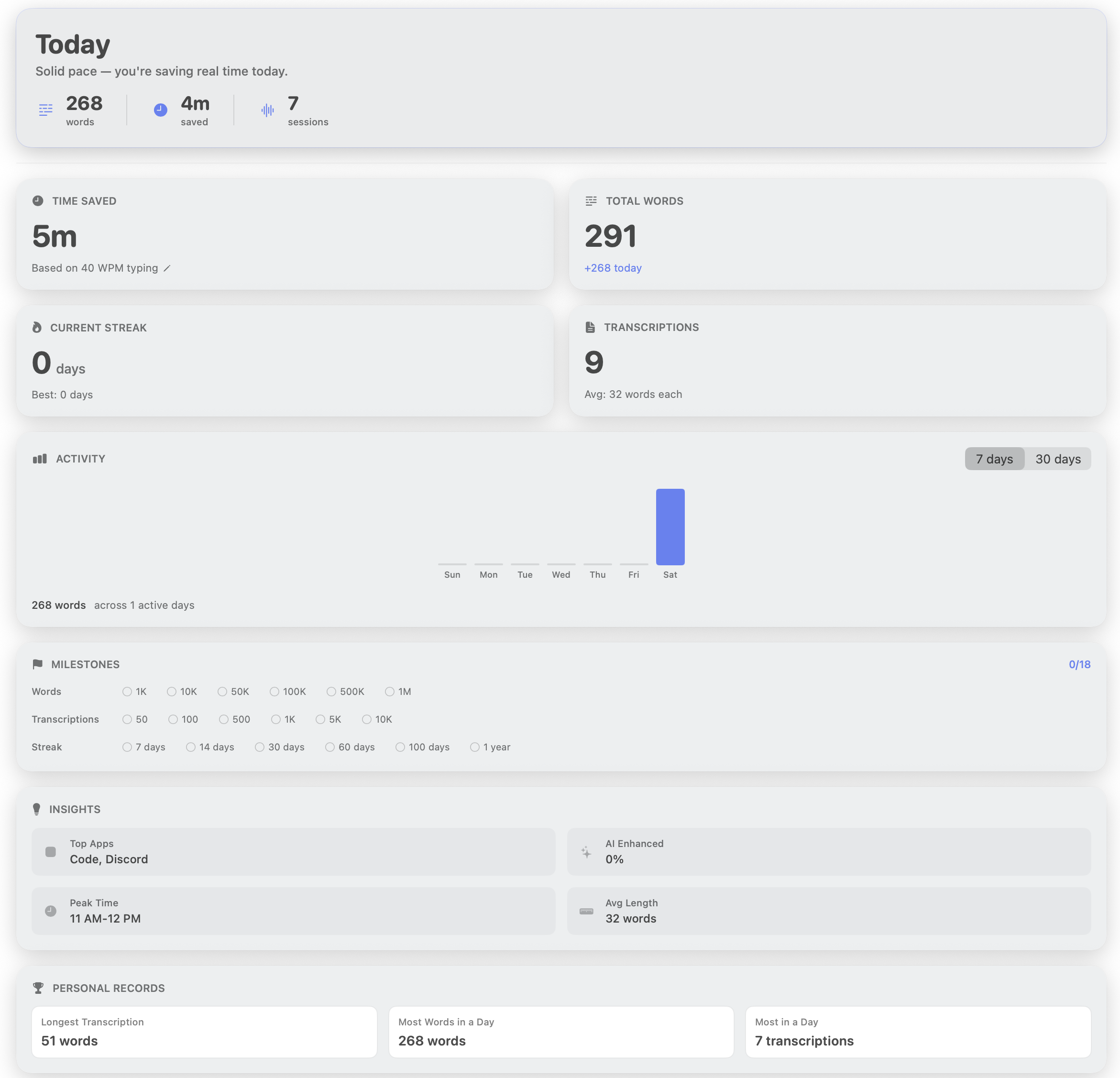
There’s also a nice dashboard that tracks your usage — words transcribed, minutes and time saved, and session counts, both for the day and overall. The copy of the dashboard below is from a fresh install on a newer machine, so the numbers are still near zero.
Summary #
At this point, FluidVoice is going to be my go-to for my voice transcription. What I plan to get out of voice transcription is the ability to get text down quicker, work with AI a bit quicker, amongst other uses that I don’t know what will come from using the tech.
Links #
- FluidVoice website
- FluidVoice on GitHub — source, releases, and issues
- Community Discord